ChatGPT Plus Instructions
Step 1:
Please log in to your Gmail account via the link below and enter your email information: Google Workspace Gmail
Step 2:
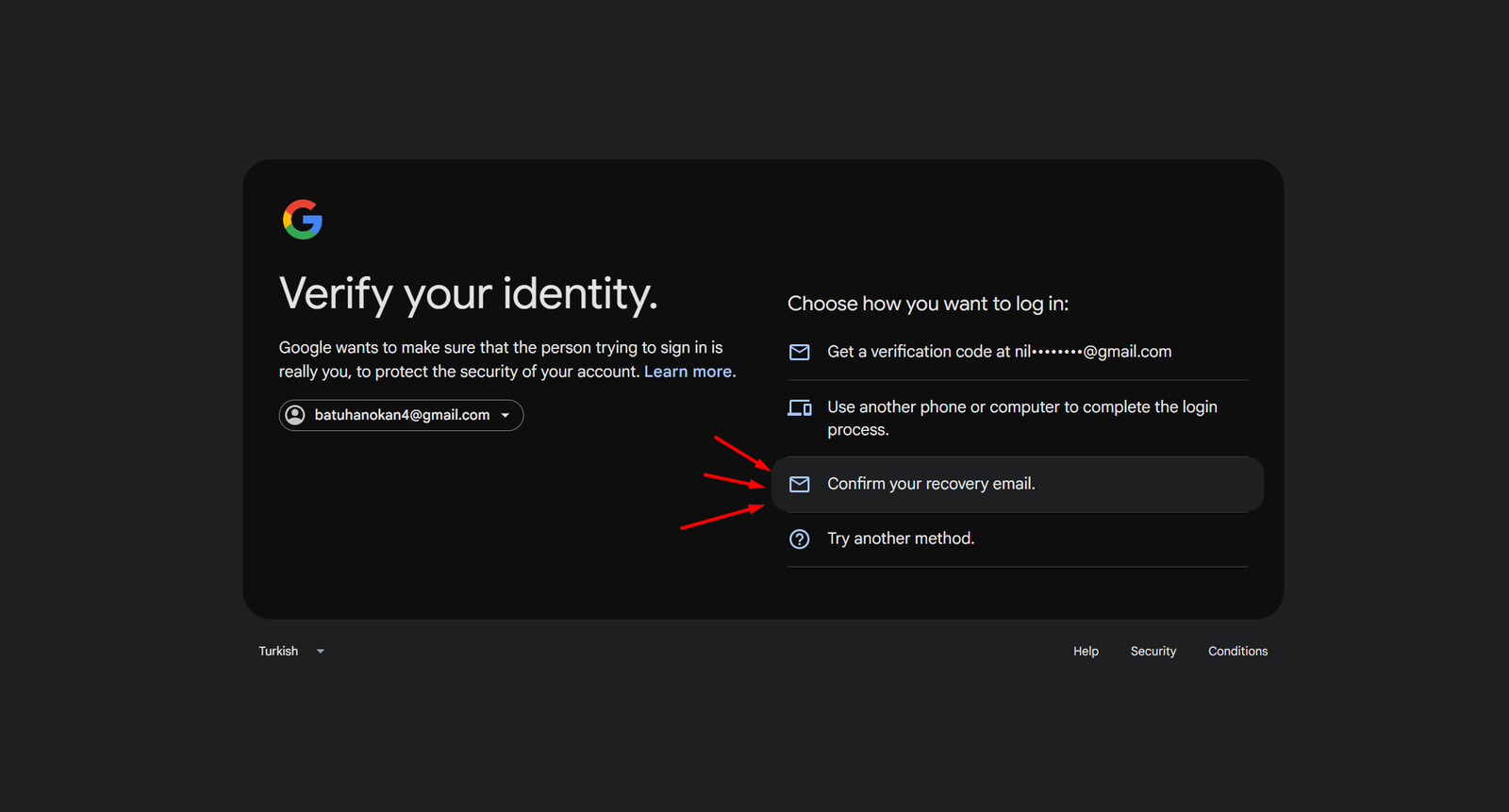
On the “Verify Your Identity” screen that appears, select the “Confirim Your Recovery Email” option to continue.
Step 3:
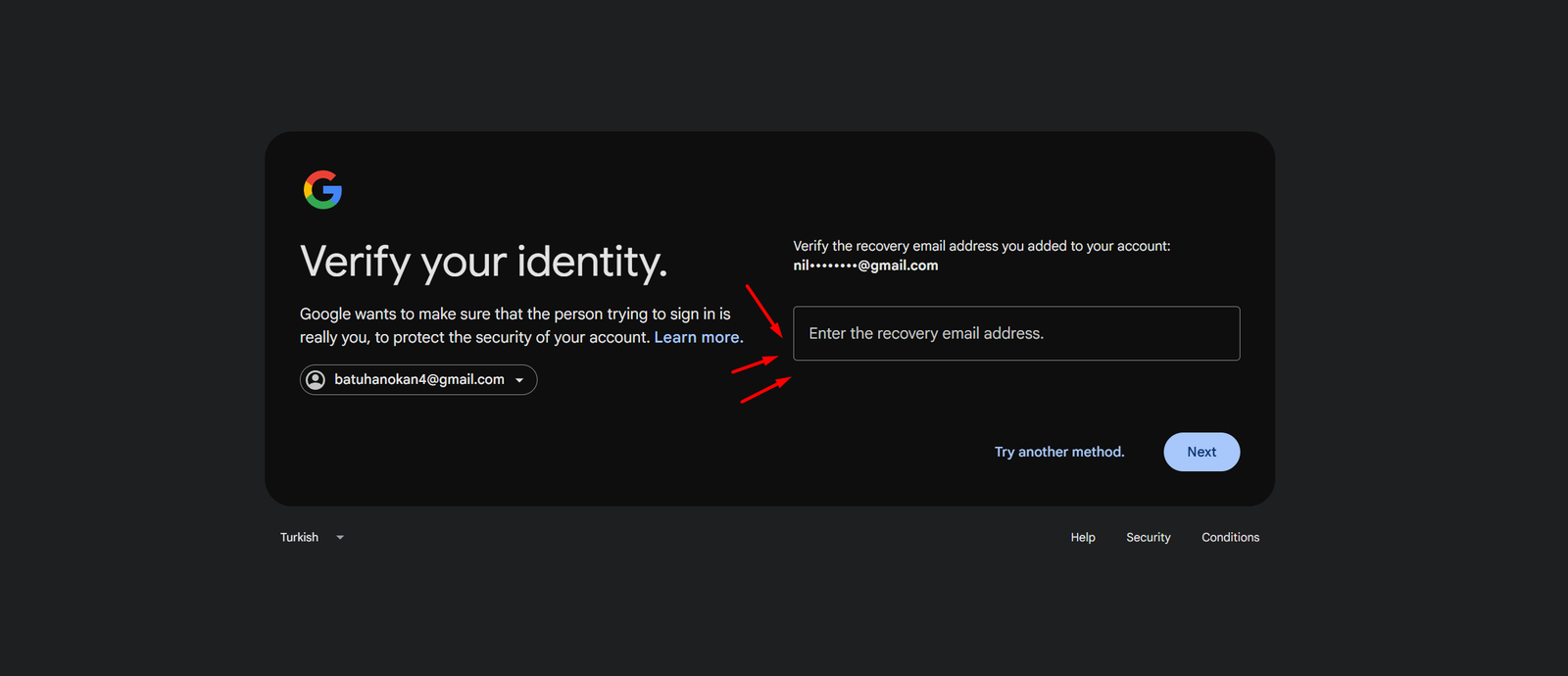
In this step, you will be asked to enter the full address of the recovery email associated with your Gmail account. Please enter the “Recovery Email” information we sent you in the appropriate field without any omissions.
Important Notices
🔶 When logging into your ChatGPT account, be sure to use the “Continue with password” option instead of the “Send code via email” option. However, you may receive a verification code at your email address; this is normal.
🔶 Your Gmail account credentials are the same as your ChatGPT login credentials.
🔶 If you’re asked to verify your recovery email address when signing in to your Gmail account, you can enter the recovery email address we provided to you.
To prevent your Gmail account from being deactivated
🔶 We recommend signing in to your account from all your devices on the first day.
🔶 Use only your password when signing in to your ChatGPT account.
🔶 If you sign in using an email code instead of your password, the system may interpret this as a temporary session and keep logging you out of your account; in this case, you may lose access to your Gmail account due to the risk of it being deactivated.